How to Map Schemes in PFMS: Guide for New Users
If you’re working on PFMS for the first time, scheme mapping can feel confusing. The dashboard, multiple options, and technical terms don’t help either. But once you understand the flow, it becomes straightforward.
This guide walks you through the exact process—with the correct PFMS website links—so you can follow it step by step without getting stuck.
What is Scheme Mapping in PFMS?
Scheme mapping in PFMS (Public Financial Management System) means linking a government scheme with the correct agency, bank account, and funding structure.
In simple terms: It defines where the money will go and through which account.
Without mapping, PFMS cannot process payments or track funds.
Why Scheme Mapping Matters
PFMS is designed to track government money in real time.
Scheme mapping plays a key role because:
- It connects schemes with agencies and bank accounts
- It ensures smooth fund transfer
- It prevents payment failures
- It allows real-time monitoring of fund usage
If mapping is missing or incorrect, payments will fail or remain stuck.
Official PFMS Website (Start Here)
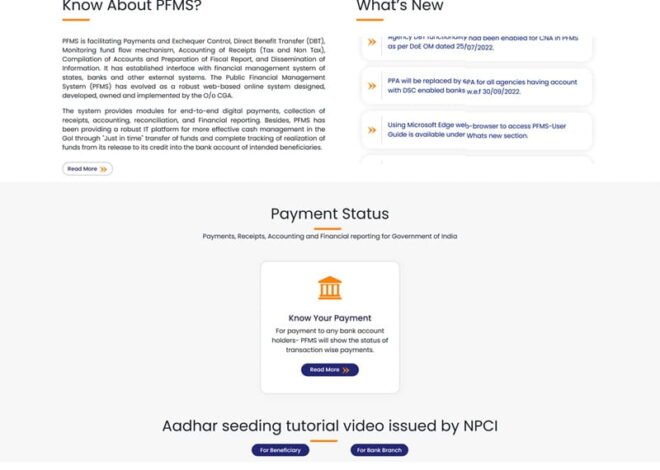
Before starting, always use the official portal: Open PFMS Official Portal
You must log in with authorized credentials to access scheme mapping features.
Step-by-Step Process to Map Schemes in PFMS
Now let’s go through the actual process using the real PFMS workflow.
Step 1: Login to PFMS Portal
- Visit https://pfms.nic.in
- Click on Login
- Enter your User ID and Password
Only registered users (like DDO, agency users, etc.) can access mapping.
Step 2: Go to “My Schemes” Section
After login:
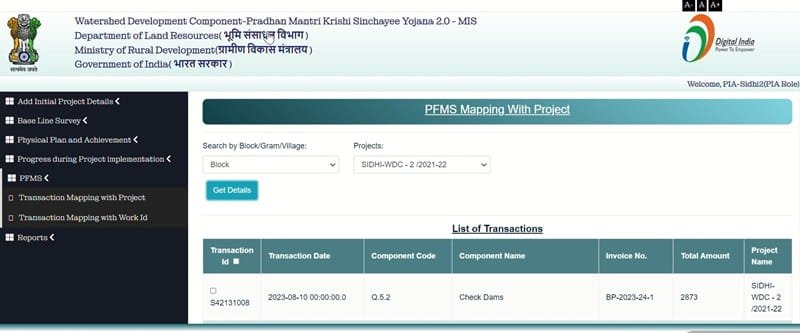
- Navigate to: My Schemes → Manage
This is where all scheme-related actions are handled.
Step 3: Select the Scheme
- Choose the scheme you want to map
- Use search if needed
- Verify scheme details carefully
PFMS allows selecting schemes through a search window where matching schemes appear.
Tip: Always double-check scheme name and code before proceeding.
Step 4: Add / Map Agency
Now link the scheme with the correct agency:
- Go to Agency Mapping section
- Select agency name or code
- Click Add / Map Agency
In PFMS, agencies can be searched and selected, then added to mapped list.
This step defines who will handle the funds.
Step 5: Link Bank Account with Scheme
This is one of the most important steps.
- Click on Add Bank/Scheme Details
Select:
- Bank name
- Branch
- Account number
- Enter agency name as per bank records
PFMS requires selecting scheme and bank through a popup and linking them together.
Make sure:
- Account is active
- IFSC is correct
- Name matches bank records
Step 6: Map Scheme Components
If your scheme has multiple components:
- Go to component mapping
Define:
- Central share
- State share
- Other components
You must map components at all levels (state/district/etc.) to avoid payment errors.
Step 7: Save and Submit Mapping
- Click Save
- Submit for approval (if required)
PFMS allows adding and saving mapped schemes under grant or agency sections.
Some mappings need approval from higher authorities before activation.
Step 8: Verify Mapping Status
Finally:
- Check if scheme is Active
- Confirm no errors are shown
Once active, your scheme is ready for fund transfer and tracking.
Common Mistakes to Avoid
Many users face issues due to small errors:
- Wrong bank account number
- Incorrect IFSC code
- Mapping inactive account
- Skipping approval step
- Name mismatch between bank and PFMS
Even a small mistake can stop payments completely.
Troubleshooting Tips
If mapping is not working:
- Check if bank account is verified
- Confirm Aadhaar and KYC (if applicable)
- Ensure user has proper permissions
- Look for pending approvals
- Review error messages carefully
Most problems are easy to fix once identified.
Best Practices for Smooth Mapping
- Always use correct and verified data
- Keep bank and scheme details ready beforehand
- Avoid rushing entries
- Cross-check everything before saving
- Coordinate with your bank if needed
PFMS is strict—but predictable if used carefully.
FAQs
1. Can I map multiple schemes in PFMS?
Yes, multiple schemes can be mapped to a single agency or grant, depending on permissions.
2. How long does scheme mapping take?
The process itself takes a few minutes. Approval may take additional time.
3. What happens if scheme mapping is wrong?
Payments may fail, get rejected, or remain pending.
4. Can I edit scheme mapping later?
Yes, but changes may require re-approval.
5. Is scheme mapping required for DBT payments?
Yes, proper mapping is mandatory for Direct Benefit Transfer.
Final Thoughts
Scheme mapping in PFMS is like setting the route for government funds. If the route is clear and correct, everything works smoothly. If not, payments stop.
The good part? Once you do it a couple of times, it becomes routine.
Take it slow, follow the steps from the official portal, and double-check your entries. That’s all you really need.